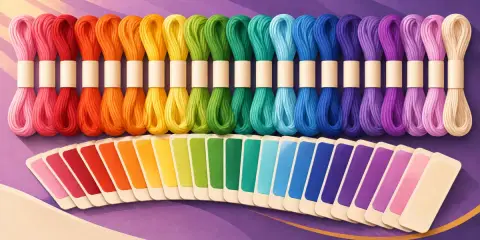
How would your photo look as a colouring page?
Turn a photo or a drawing into clean black lines to print and colour in.
What you enter stays on your device while you use this tool. Opening a shared link sends the settings in its address to HowToolbox to prepare the page.
Colouring page workspace
The picture, 360 × 240 pixels
Drag to move it, drag a corner to resize it. Arrow keys move it, Alt + arrow keys resize it; with Shift in larger steps.
360 × 240 pixels, 0 from the left, 0 from the top
The picture is turned into lines on your device and is never uploaded.
Optional, for example a name; empty prints no heading
Drag the box or its corners on the picture.
Turn a photo or a drawing into clean black lines to print and colour in.
How to use
- Choose a photo, or start from the sample picture. Nothing is uploaded.
- Pick where the lines come from: the borders between colour shapes (cleanest for cartoons and simple photos) or the edges of the picture (best for detailed drawings). Move Detail until the areas are the size you like to colour.
- Print the page at 100 % (actual size), or download it as a PDF or an image.
How it works
A colouring page is a picture reduced to its outlines. With colour shapes, the tool cuts the photo into flat colour areas, merges tiny specks into their neighbours and draws a line wherever two areas meet. With edges, it looks for places where the brightness changes quickly, which is where your eye sees an outline, and draws a line there.
Edges are found with the Sobel method: each pixel is compared with its eight neighbours, the horizontal and vertical brightness changes are combined into one number, and a line is drawn where that number is above a threshold. A lower threshold keeps fainter edges, so more detail means more lines. The page shows how many separate white areas there are to colour.
Photos with a clear subject and a plain background work best. Busy photos give many tiny areas; raise the line thickness or lower the detail to make the page easier for small hands.
Worked example
How thick are the lines on an A4 landscape page?
- The picture becomes a grid with its longer side 360 cells: 800 × 600 cells.
- A4 landscape with 10 mm margins is 277 × 190 mm, so each cell prints 0.32 mm.
With the default 3 px lines, the lines are about 1 mm wide.
Method
No outside data is used: the tool works only with what you enter, in your browser.
Frequently asked questions
Is my photo uploaded?
No. The lines are drawn in your browser and the photo never leaves your device.
Which style should I use?
Colour shapes gives bold, closed outlines that are easy to colour. Edges follows the fine lines of the picture and suits detailed pictures and drawings.
How do I make the page easier for a small child?
Lower the detail and raise the line thickness. A simple photo with few objects gives large, clear areas.
How do I print it at the right size?
Choose Print, set the scale to 100 % or Actual size and turn off Fit to page. The page is already sized for A4 or Letter paper.
Can I save the page as a PDF?
Yes. Use the PDF button under the preview, or choose Save as PDF in the print dialog.
What kind of photo works best?
A sharp photo with a clear subject, good light and a simple background, such as a pet, a toy or a building.