How would your photo look as pixel art?
Turn a photo into pixel art or a game sprite with a retro palette and dithering, then download it as a PNG or print the grid.
What you enter stays on your device while you use this tool. Opening a shared link sends the settings in its address to HowToolbox to prepare the page.
Pixel art workspace
The picture, 160 × 120 pixels
Drag to move it, drag a corner to resize it. Arrow keys move it, Alt + arrow keys resize it; with Shift in larger steps.
160 × 120 pixels, 0 from the left, 0 from the top
Making the sprite…
Fixed palettes use the colours of the original machine, so every pixel is one of them. Dithering mixes neighbouring pixels to suggest the colours in between.
The picture is turned into pixel art on your device and is never uploaded.
Print at 100% (actual size), not “Fit to page”, so the squares keep their real size.
Drag the box or its corners on the picture.
Turn a photo into pixel art or a game sprite with a retro palette and dithering, then download it as a PNG or print the grid.
How to use
- Choose a photo, or start from the sample picture. Nothing is uploaded.
- Set the width in pixels and pick a palette. A small width such as 32 and a palette such as PICO-8 or Game Boy give the classic look. Open the extra settings for dithering, contrast and a square crop.
- Download the sprite as a PNG, or print the grid with its colour key.
How it works
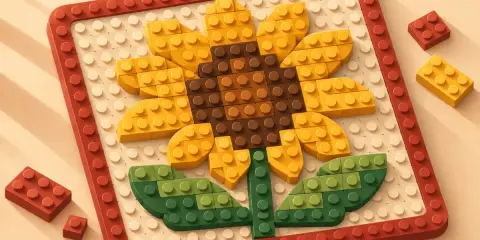
Pixel art is a picture made of a few big square pixels in a small set of colours. The tool shrinks your photo to the width you choose by averaging the light in every block, then gives each block the nearest colour from the palette. The nearest colour is judged the way the eye judges it (CIEDE2000), not by raw red, green and blue numbers.
With few colours, smooth areas become flat bands. Dithering fixes that by mixing two nearby colours in a pattern: error diffusion (Floyd–Steinberg, Atkinson) spreads the leftover difference to neighbouring pixels, and ordered dithering (Bayer) adds a fixed dot pattern, the look of many old games. An adaptive palette picks the best few colours for the picture instead of a fixed machine palette.
The PNG has one cell per pixel multiplied by the size you choose, so it stays crisp when it is enlarged; a 32 × 24 sprite at 8 pixels a cell is 256 × 192 pixels. Fixed palettes follow the machines they are named after, but the real screens varied, so the colours are an approximation.
Worked example
How big is a 32-pixel-wide sprite of a 4:3 photo when exported at 8 pixels a cell?
- The sprite is 32 cells across and 32 × 3 ÷ 4 = 24 rows.
- Each cell becomes 8 × 8 pixels in the PNG, so the picture is 32 × 8 = 256 wide.
The PNG is 256 × 192 pixels.
Method
No outside data is used: the tool works only with what you enter, in your browser.
Frequently asked questions
Is my photo uploaded?
No. The sprite is made in your browser and the photo never leaves your device.
How big should the sprite be?
16 to 32 pixels wide gives the classic look of game sprites; 64 to 128 keeps more of a photo. Smaller is more stylised and needs fewer colours.
What is dithering?
A way to suggest colours the palette does not have by mixing two of its colours in a pattern. Turn it off for flat colour areas, which suits logos and cartoons.
How do I get a sharp PNG?
Download it with the pixels per cell you want, for example 8 or 16. The PNG is made of exact squares, so it does not go blurry. Avoid enlarging it afterwards with smoothing.
Can I make a game sprite?
Yes. Turn on the square crop, pick a small width such as 16 or 32 and a palette such as PICO-8, then download the PNG. Transparency is not supported, so the background is part of the picture.
Which palette should I choose?
Game Boy for four greens, PICO-8 for a bright 16-colour fantasy console look, CGA for four garish colours, EGA or C64 for a 16-colour home computer look, and adaptive to keep the colours of your own picture.